
Sumasen Trainer
Train and create a new Model
-
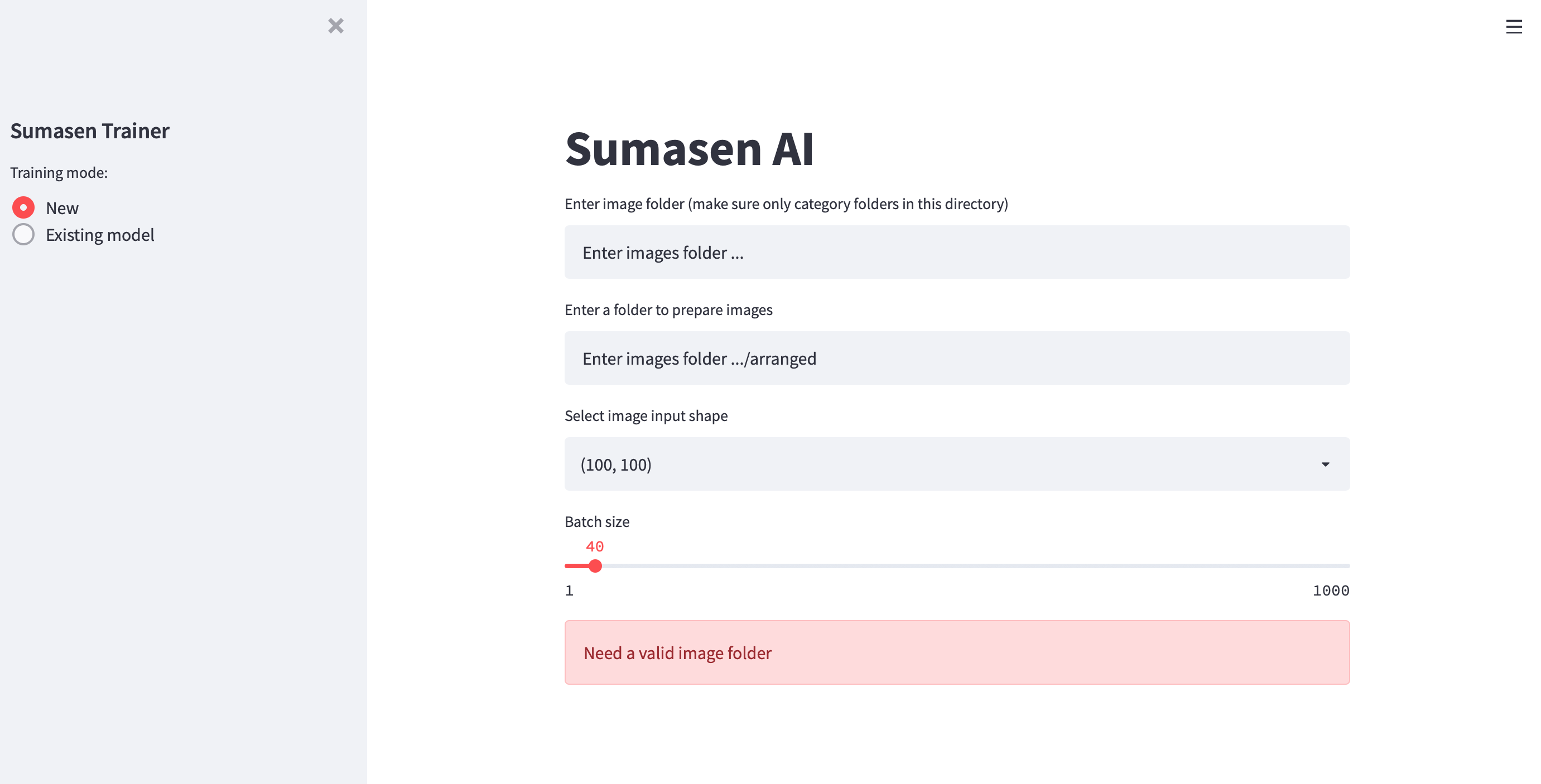
Select New from left menu
-
Enter image folder where images are saved in sub folder as their category

This will assign a outpu folder to arrage images, you can modify if required

Eg:
image_classifier/dataset/raw_data

-
Select input shape This will be used to resize image into

-
Select Batch Size This is the number of image used to train as a batch

-
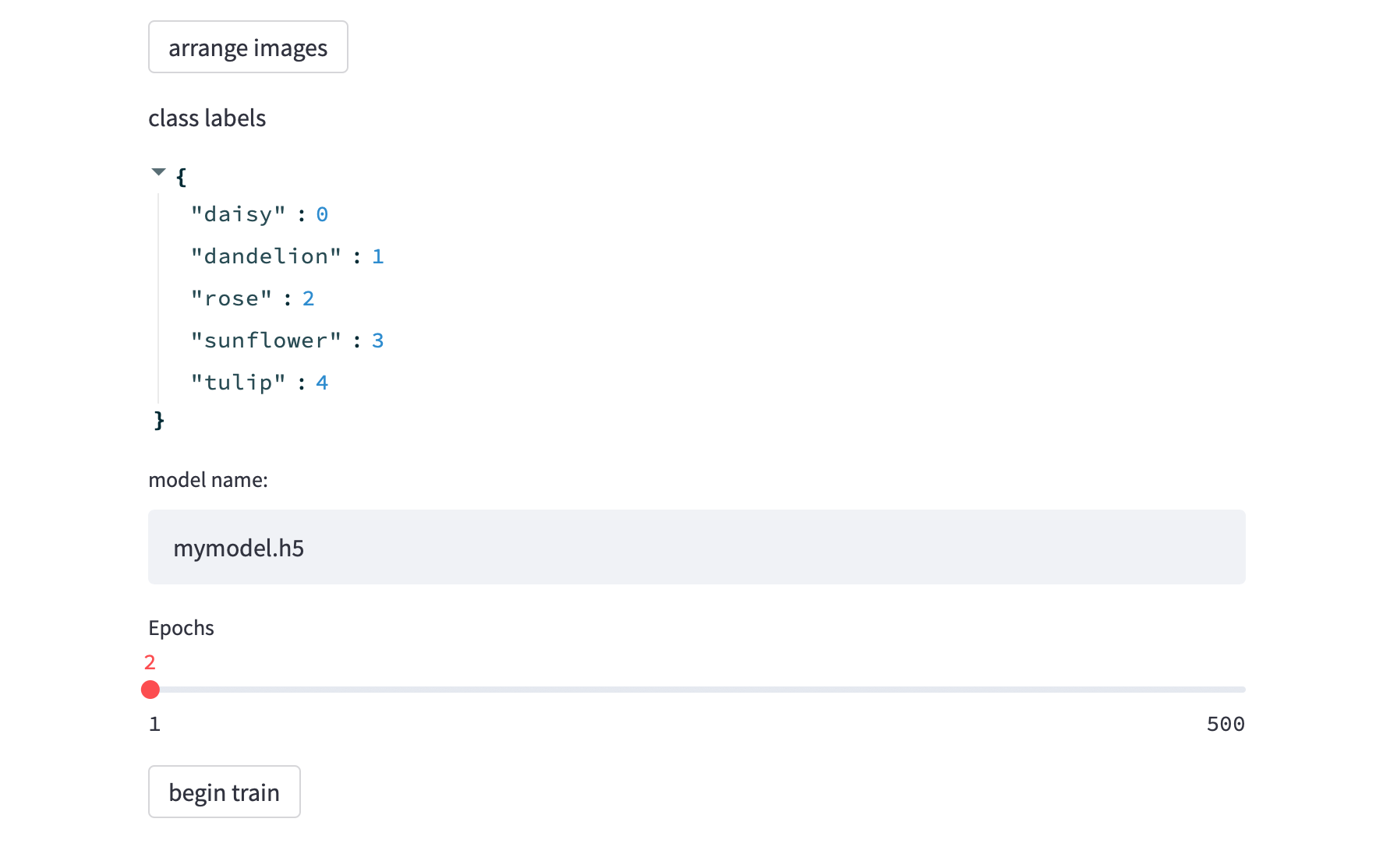
Click arrange images button This will rearrange the images seected above and arrange them as train, test and validation sets
-
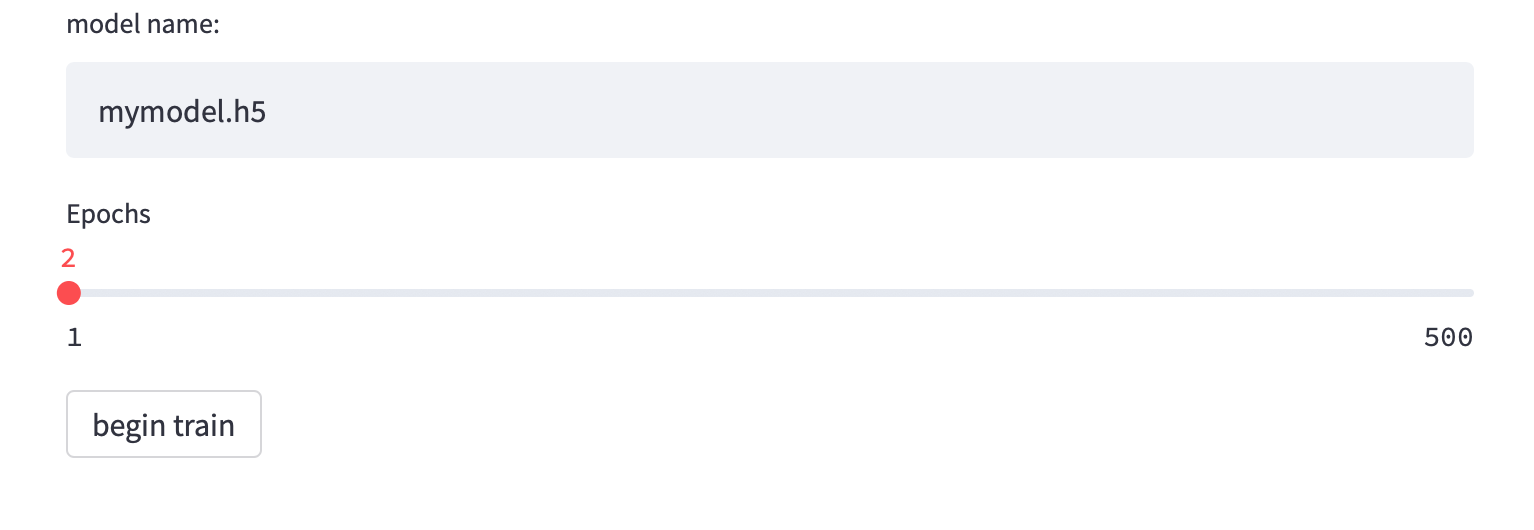
a) Enter a name for model, the model will be saved under previouly selected output folder b) also select number of epochs the training should run
 )
) -
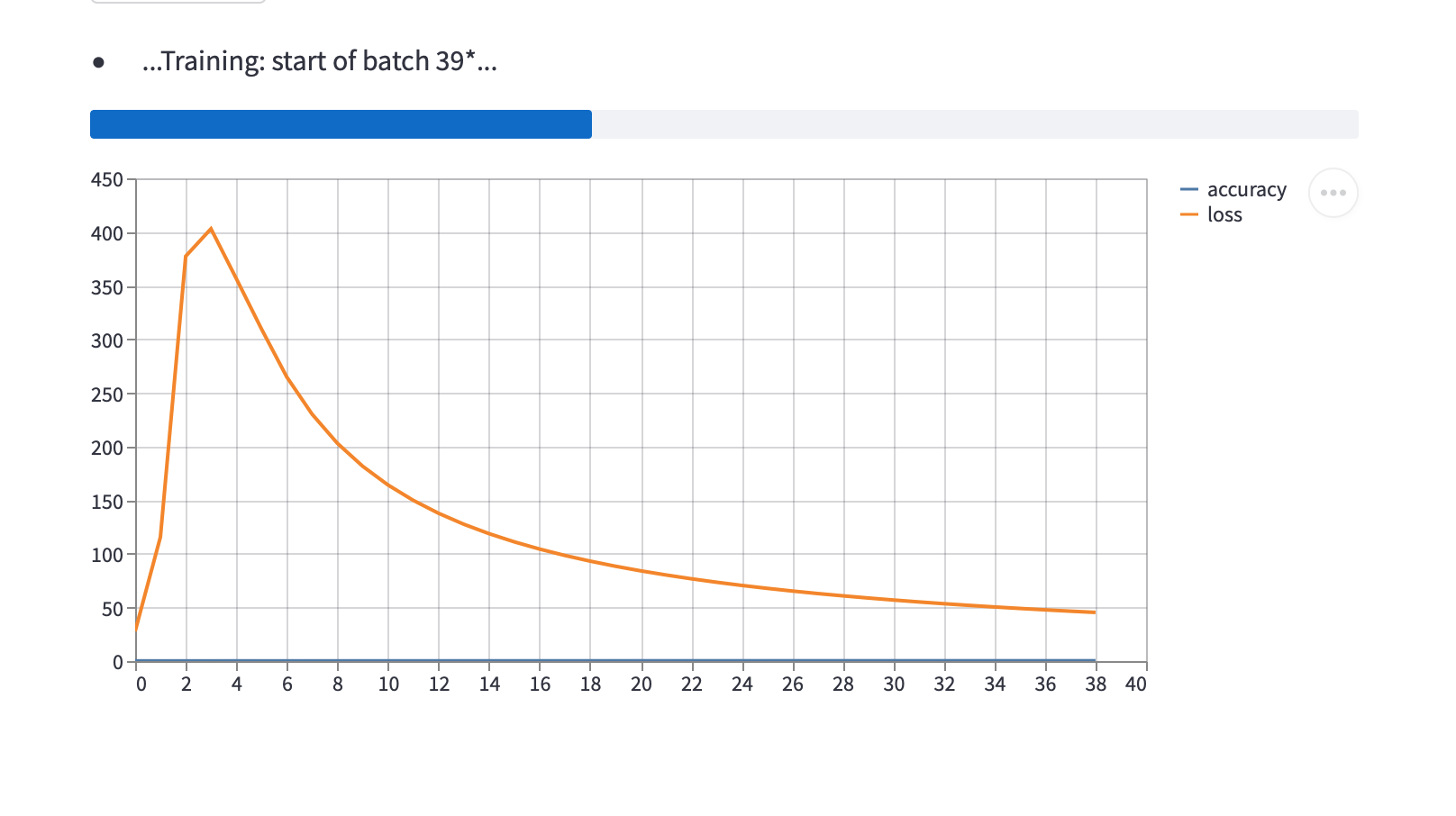
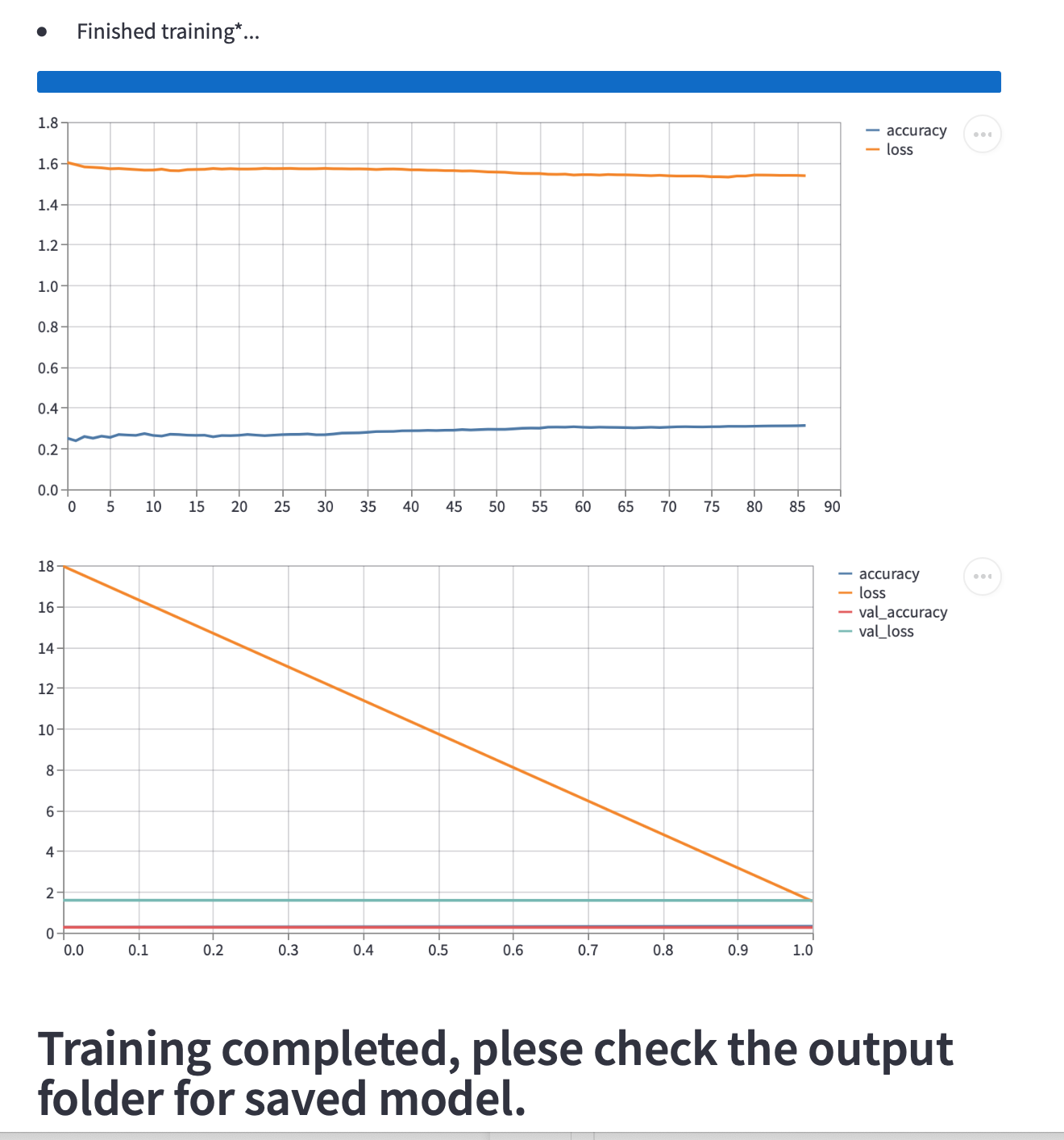
training progrss
-
Training completed. The model will be saved in the output folder


Predicting a new image
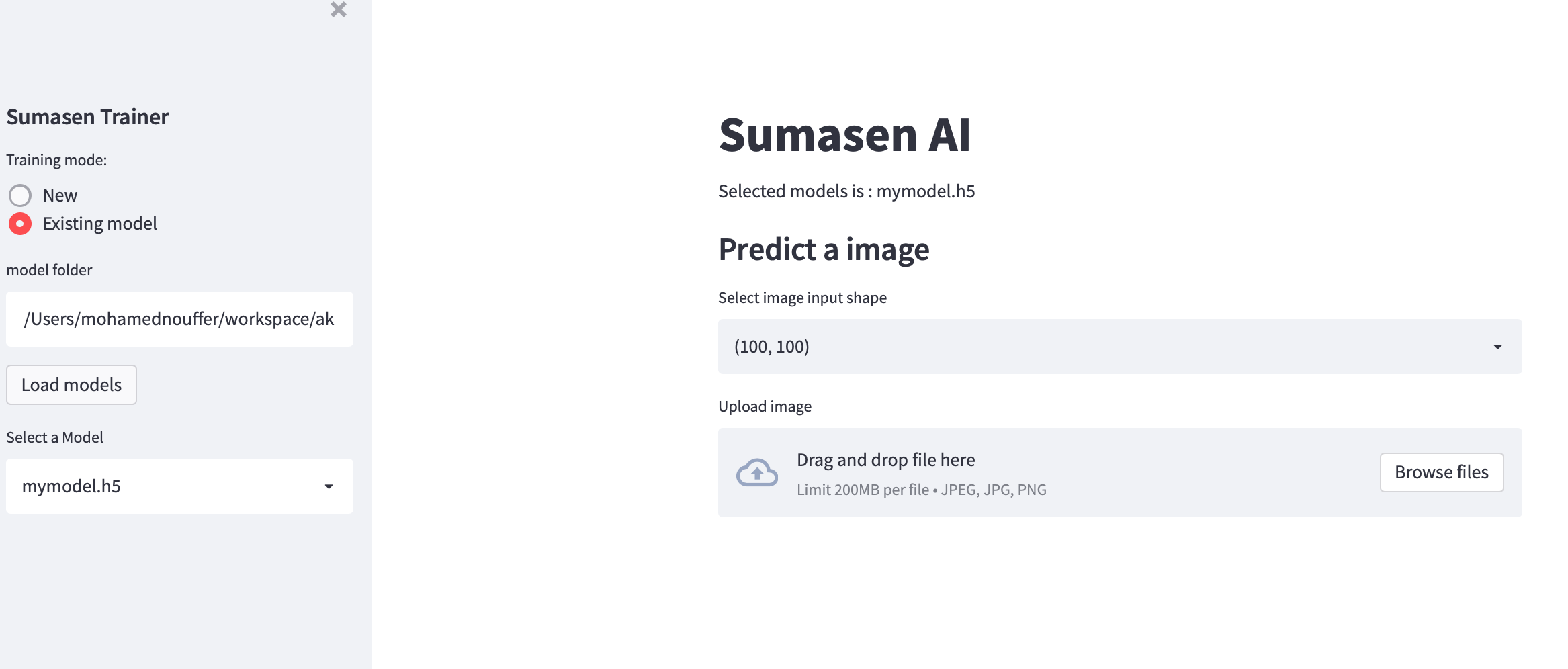
- Select "Existing model" from left pane

-
Enter a folder to list all models available (if a training session is done previously the output folder will be there automatically)
-
Click load model and select a model available
-
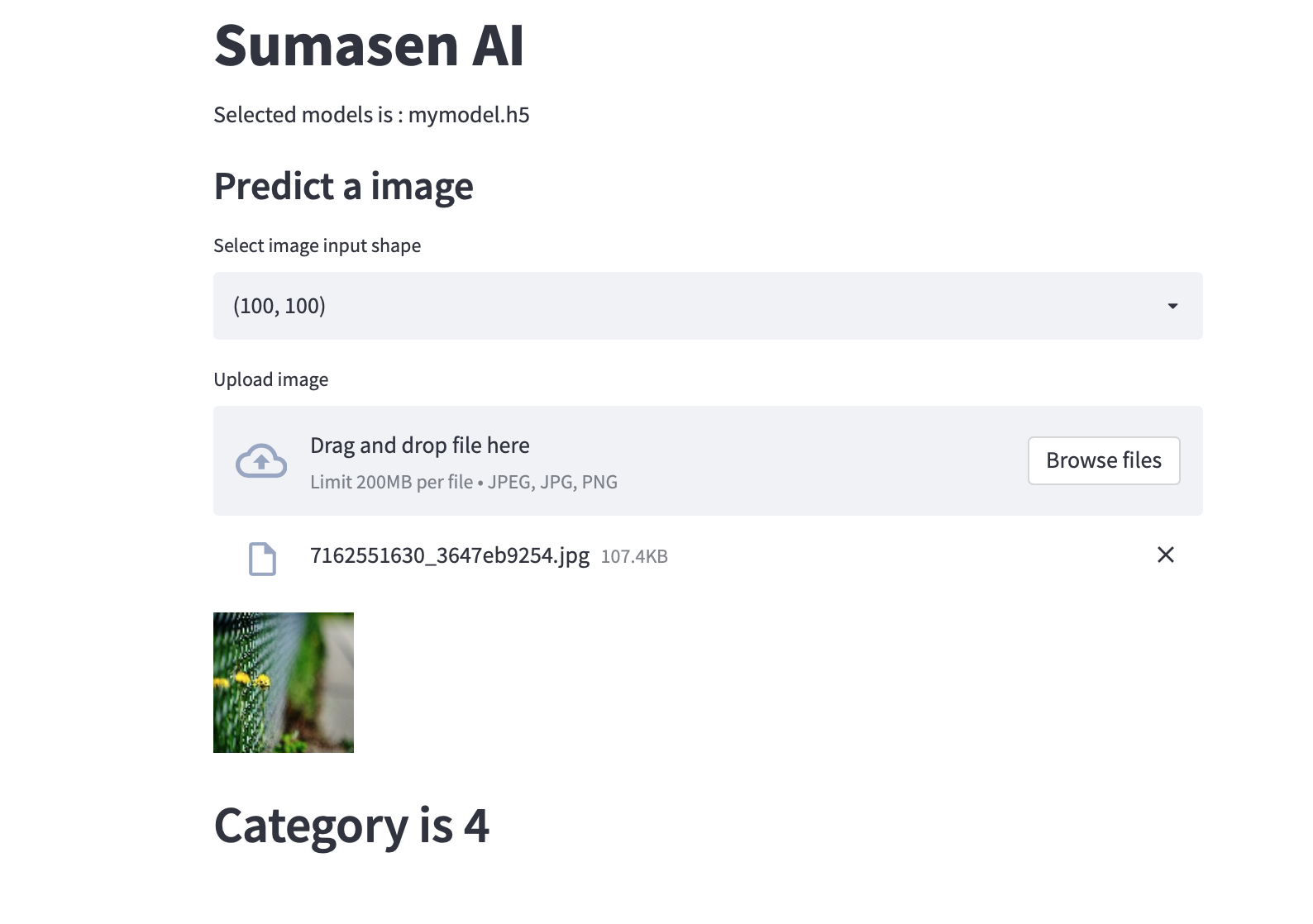
On the right pan select images shape that used for this model and a new image to predict,


Automated categorizer
How it works
-
When an image is placed in a defined monitoring folder the categoriser will use defined trained model to categorise it and will move the image to a category sub folder of the defined target folder
-
defining model, monitoring folder and target folder:
- "params.dat" file have those vales